Future peripherals could be Windows-only, if Microsoft succeeds in pushing its exFAT file system as a replacement for the ageing FAT format.
Microsoft has begun the long process of phasing out the FAT (File Allocation Table) filesystem and replacing it with exFAT, signing agreements with five hardware vendors to licence the format for use in peripheral devices.
First introduced in 1977 as an eight-bit storage format for Microsoft's BASIC language, the format received its last serious upgrade in 1996 with the launch of FAT32 as part of Windows 95 OEM Service Release 2 (OSR2.) Designed to extend the existing FAT16 format, FAT32 expanded the possible size of a partition on a hard drive from 2GB to 16TB but retained a file size limit that meant no single file could be larger than 4GB. While extensions to the format, including the open FAT+ standard, attempted to extend this to 256GB per file, few gained commercial traction in mainstream operating systems.
A lack of journalling and other data protection systems has led to a migration away from FAT and towards the New Technology File System (NTFS) first introduced in Windows NT 3.1 in 1993. Featuring a maximum file size of 16TB - expanded to 256TB in the NTFS implementation used by Windows 8 - the format is significantly more robust and adds POSIX-inspired features like hard links missing from FAT.
While NTFS has all but replaced FAT on the Windows desktop - while due to be replaced itself by the ReFS format used by Windows 8 - the lowly FAT format still rules the roost on removable devices where the 4GB file size limit doesn't matter. Its open nature, coupled with its wide compatibility with most mainstream operating systems - with full read and write support in every version of Windows since 95 OSR2, Apple's OS X and Linux - made it an obvious choice.
Now, however, Microsoft is looking to migrate people across to exFAT. First developed for Windows Embedded CE 6.0 in 2006, exFAT is non-backwards compatible but fixes many of the limitations of FAT32 including adding support for files larger than 4GB, improving storage efficiency for files smaller than 64KB, and lowering seek times in directories containing thousands of smaller files.
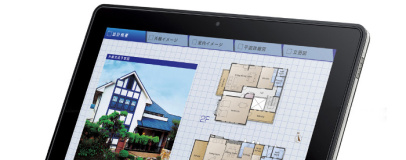
So far, exFAT's closed-source and proprietary nature, and its use of software patents to prevent third-party support being added without a licence, has limited its appeal. That appears to be changing, however, with Microsoft announcing deals with Sharp, Sigma, NextoDi, Black Magic and Atmos Global to add exFAT support to future products. Sharp will be adding the format to its future Android tablets, Sigma and NextoDi to its professional cameras and image storage products, and Black Magic and Atmos Global to their video recording systems.
These peripherals will be limited to use with selected operating systems thanks to a lack of exFAT support in third party products. Should they prove successful with consumers, the days of cross-platform devices could be drawing to a close and while Apple has licensed the format for OS X, open-source operating systems like Linux are likely to be left out in the cold.

47 Comments
Discuss in the forums ReplyNTFS has largely replaced all FAT systems in business, Windows 7 does not even offer the option of formating the drive as FAT last i checked.
The only software this will effect is linux which is likely to be left out in the cold.
OSR2 is short for "OEM Service Release", by the way.
And any hardware manufacturers who do not wish to licence the new fat from MS...
I realise that was tongue in cheek but I'll continue any way :D.
Computers are not the only places you'll find FAT, anything with internal storage will most likely be running a FAT file system. So your camera, your television, web streaming blu-ray the list goes on.
A free, (relatively) reliable and most importantly ubiquitous file system makes life much simpler for all us geeks not just Linux users .
PS: I know some people would think it is not really needed having a movie displayed in 1080p on a mobile device, but when I shrunk it down to my device resolution of 800x480, you could see that the film looked horrid, yet, when I divided the file and watched it in 1080p, it looked amazing... just a shame about the pauses you get when watching the film and half way through it goes to the next file...
And yes I do know that you can format the sdcard to ntfs on some android devices & it'll work with a few mods, but I can't risk bricking my phone.
I like me some Windows, but seriously, it is annoying as hell when I have my external HDD along and want to transfer a whack of files to my cousin at the holidays....and since he has a Mac Book Pro...no go, as it refuses too with the NTFS formating on the 640GB external drive. So then I am stuck slapping the images on a thumb drive and transfering them in 2 or 3 steps because the only way they can talk to each other is through FAT32 (at least storage to storage).
Sigh. I really hope exFAT doesn't become standardized and leave people out in the cold. I am not a huge Linux fan, but it deffinitely has its place. It'll be a sad/bad day if, for example, my only option on my future digital camera is to use it with Windows, or a Mac or I can get a special open source digital camera that sucks and will work with Linux.
rather than leave exFAT on the cold I wish it doesn't become a closed standard so that it can be adapted by everyone faster, well unless everyone licenses exFAT. lol, i don't really want to stick to fat32 anymore honestly
You had the resources of the entire internet and a desktop PC and you couldn't down-sample a 1080p video to 480p without it looking much worse than the same resizing performed during playback? i think if you'd have persevered you'd have been able to come up with something equally as good if not better.
Wether exfat takes off for external storage time will tell.
Really? How long will it take reverse engineer it and add compatibility? Isn't NTFS also proprietary, and that works perfectly.
Microsoft makes something, wants to licence it out to make some "money". They're not forcing you to use it and even if they were, what difference would it make? As has already been mentioned, NTFS is proprietary we're (almost) all content with that.
Why do people act like Microsoft (et al) are anything other than businesses out to make a buck?
THIS.
And as to being a closed-source Microsoft file system, well so is NTFS and I bet most Linux users would format their large capacity USB drives with NTFS, if only because of the wide compatibility with systems.
Is it ideal? No, an open solution would be best, but in the absence of a favoured implementation or a influential pushing supporter, exFAT may end up being it.
The only issue you might have is the Microsoft Tax that is added to devices that support exFAT, and that has already been paid via licencing so...
Oh, wait...
I am sure that the EU will smash this one way or another, no worries.
Enjoy the show.
When was the last time someone used FAT on Linux?
I use ext2 since the 90s when Linux came out, ext3 later on, and the last 5 years ext4.
There are far superior techs out there
Whenever someone plugged in a usb flash drive I suppose.
Me, last night when I had to format a USB stick as FAT32 so that I could transfer Puppy Linux Live to it in order to rescue my PC. Oh, and on the boot partition for my Raspberry Pi.
FAT32 does suck, but it's also pretty much universal when it comes to creating bootable USB drives. I've had a lot of trouble getting NTFS or EXT2/3/4 formatted USB drives to boot successfully - when I'm not using pre-built .IMG files and dd/Win32DiskImager, that is - but FAT32 usually works perfectly.
You may notice that the latter option is functionally identical to your "way to disable filesystem permissions for ext4."
You can set these permissions on files manually ("chmod -R 777 *" for example), or you can set a 'create mask' at the point of mounting. Set the mask right, and you've basically got an ext4 volume with FAT32-like levels of security - i.e. none at all.
As for journalling, you can disable journalling altogether, or change how aggressive it is. Check the manpage for tune2fs for details.
Because of the inherent multiple computer problem, setting things that only affect the local computer (like mount options) are out of the question. Changing the permissions of my files every time I create a new file is a temporary solution, but the annoyance caused by forgetting to do that one time then being stuck without access to files for, say, a day, is frustrating to say the least. Until permissions can be turned off on the filesystem itself I can only stay productive while using FAT32, or exFAT once Linux FUSE modules come out.
Here, try it: grab a flash drive, format it as ext2/3/4 (whichever.) Create a file, check the file permissions - they're not what you're after, right? Type "umask 000" and create a second file. Check the permissions of *that* file.
The second file, you'll notice, has its permissions set such that anybody has read and write access to it. Every file you create from then on - in that session, naturally - will also have the same permissions, unless you manually override them. No need to set mount options, no need to change the permissions manually.
The problem in this is just as you say - it only applies to the session. I want a permanent solution. Although saying that, umask may be useful in other circumstances...
I am not trusted enough to have sudoers, or root access to most of the computers I use. Therefore this method will not work reliably.
As an example: on my home computer I am UID 1000 (or 1001, but it makes no difference). If I use umask or chmod every time, then I will have no problems. Unfortunately this is a command line annoyance - one of the things that GoodBytes always presses as a major problem of Linux. When I then take this USB drive to a different computer (for example the school computers), where I have a UID of 20106 AFAIK, then I will not have any access to my files that I did not prepare properly. Now on most of the computers that I use regularly I know the administrator password and so can use sudo to fix the problem, but there are a great many computers where this will not work. And besides, I may be using a completely different computer somewhere where I am a guest. Surely I won't have sudo or root access there...
Don't get me wrong - I would gladly use an open source filesystem for my USB drive, but until the permissions thing is somehow sorted, I cannot use one with any sort of efficiency or practicality.
Don't get me wrong, here: if you find FAT32 does what you need - and especially if you're transferring files between Windows and other operating systems - then continue to use it. I'm just correcting misconceptions so that anyone coming across this thread via a search doesn't see it and say "oh, well, obviously I can't use ext4 for a removable drive" - something which is clearly mistaken. Any ext format works fine on removable drives, so long as you know what you're doing with permissions - and has the advantage that you can transport files larger than 4GB, something that FAT32 won't let you do.
And yes - I do have root access on my home computer, but this will only let me set the mount options on my home computer, as far as I am aware. On any other computer the mount options will just revert to the defaults, and the cycle begins again. Unless there is something I am missing here?
I very often hit the 4GB file limit on FAT32. I usually get around this temporarily by creating an ext4 partition on my USB drive, manually making sure the permissions are correct for my files, then removing the partition once the work is done. I really do want to use ext4, but until changing set permissions is a completely transparent process, I simply cannot use it effectively.
I could set the umask on every computer that I use, or I could manually change the permissions every time I add new files in, but I won't because this isn't transparent anymore. I cannot change the mount options on every computer I use, simply because I don't have (legitimate) root access to them. A solution needs to be something that I can apply once to the ext4 partition, and have it permanently set to fully permissive permissions no matter which computer I use it on.
Right, let's go for scenarios. The way I see it - and feel free to correct me if I'm wrong - there are two scenarios at play here: you need to access a file you created on your home computer on a third-party computer, and you need to access a file you created on a third-party computer on your home computer. Let's call those Scenario 1 and 2 respectively.
Scenario 1 works invisibly: set the create mask on your home computer - mount option in fstab, mount option passed through FUSE, umask in /etc/profile, umask in ~/.bashrc, feel free to pick any one of those multiple options - and any files you create on your drive will be set up so any user account can access them. Plug the drive into the third-party computer, and the files are immediately accessible with no changes required.
Scenario 2 is, if I'm reading your post right, where you're getting confused. You're quite right that, if you make no changes to the third-party computer, the files will be created with the system-wide mask of 002 or 022 (depending on the system in question.) As a result, you take the drive back to your computer and receive a permissions error when you try to modify the file.
But remember what I said about only needing root access on your home computer? Take ownership of the file you're trying to open with "sudo chown yourusername filename" - or, if your file manager supports it, by right-clicking on the file and going into the properties menu. Et voila: the file is now fully accessible on your home computer. Want to make it so it's the same permissions as every other file on the drive? "chmod 666 filename" - boom: it's now set so that all users, regardless of UID or GID, have read and write access, and will remain set that way on every computer to which the drive is connected.
Want to make things easier on yourself? For computers where you have a user account but no root access, put "umask 000" in your ~/.bashrc - you don't need any special permissions to do this. That'll set the thing up so it's identical to your home computer, i.e. it all just works invisibly without you having to do anything further. If you're using a guest system where you don't have a permanent account, put the files in a directory labelled TRANSFER - this will remind you to take ownership of them and set the permissions correctly when you get home, after which you can move them to any other directory on the drive.
So. we've now got three scenarios: Scenario 1, transferring from your home computer, is solved; Scenario 2, transferring from a computer on which you have a permanent account, is also solved; Scenario 3, transferring from a computer on which you have no permanent account, requires an extra step that would not be necessary if you were using FAT32, but I would still argue is 'solved' in that you need remember to do nothing but take ownership when you get home - something the file system will remind you of when you try to modify the file and get a permissions error.
Scenarios 1 and 2 are functionally identical to using a permissionless file system like FAT32: once configured, everything just works invisibly with no input required from you. Scenario 3, I'll grant you, is not identical to a permissionless file system - but it's hardly a chore, either. Remember, too, that the default permissions mask is set to allow read access to all: if you find yourself on a computer with no root access and with files owned by a differen GID, you can just copy the file: read access will let you do that, and the new file will have read and write access for your current UID and GID (on most systems: those set to 022 wil have read-only group access, but you can modify that if you want.)
Like I say, though: if you're happy using FAT32, use FAT32 - but don't tell people it's because ext4 is rubbish and doesn't work with external drives, because that ain't true in any way, shape or form. Me, I prefer being able to easily transfer files greater than 4GB - if I'm shuffling files, they're usually large video files, backup archives or disk images - so I use ext4 for all my external drives and NTFS for the ones I use when transferring to or from Windows.
I never said that that ext4 is rubbish for external drives - I am simply expressing my opinion on the subject and presenting my experiences. I would much prefer to be using ext4 over FAT32, mainly for the size limit reason, but I cannot justify it if I have to mess around with permissions every time I write a file, or have the chance that I cannot read my files if I forget that step.
To satisfy my curiosity, could you - when you get a chance - create a new file at school and tell me the permissions ("ls -larth filename")? I'm really curious as to how this is set up, because I've yet to see a Linux system that defaults to creating files only readable by the original owner - which is the scenario you're describing there.
I am trying to aim for the transparency of permissions given with FAT32 - aka no effective permissions at all. I could simulate it by creating a folder with 777 permissions on my memory stick, then ending up with an equivalent of the /tmp directory on my USB drive (as in - the owner can edit, but others only have read only) but this isn't quite a complete solution. Despite this, this thread has fixed some of my gripes with ext4 on a removable drive, so I might try for a more complete solution at a later date. Thanks, Gareth. ;)